
Create and Customize Languages
Applies to: Advanced Billing
Last updated on Sep 19, 2026
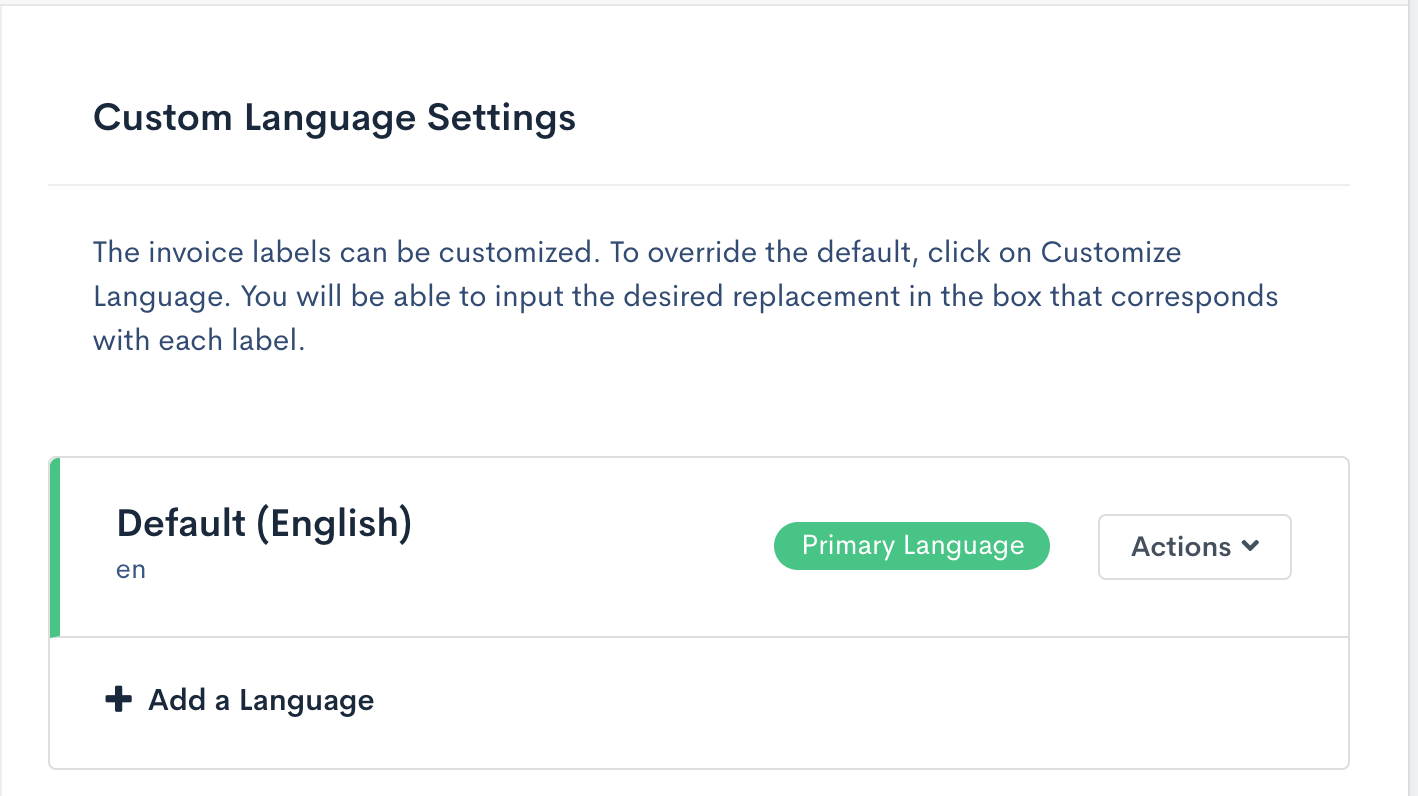
Languages are created and maintained on the Language Settings tab, under Config > Settings.
What you can do here
The tab supports five actions, each covered below.
- Add a new Language
- Customize a Language, meaning modify its existing translations
- Configure a Language, meaning change its locale details
- Set a Language as primary
- Delete a Language
Add a new Language
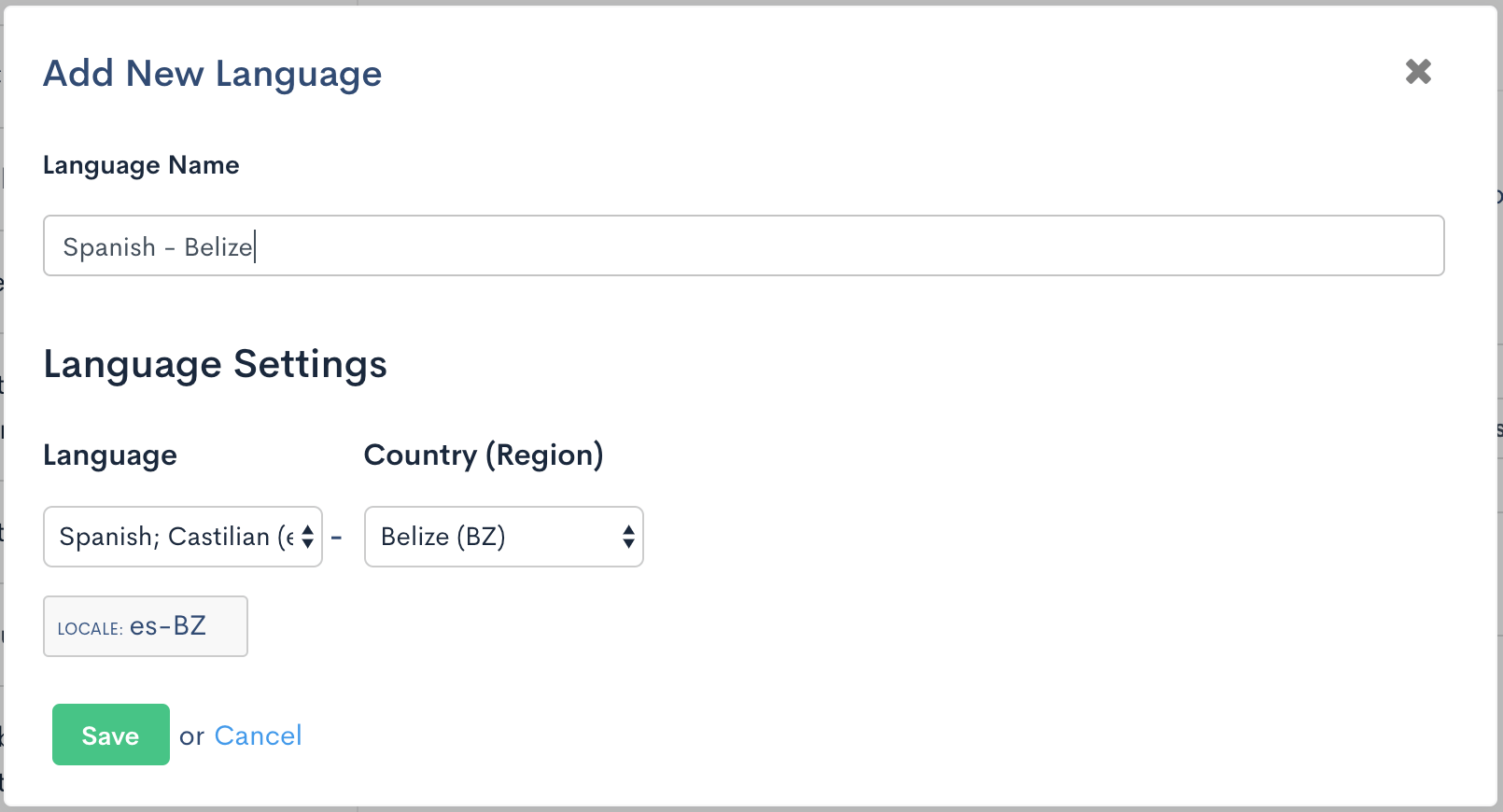
To add a new Language, click the “Add a Language” text in the Language Settings area. A form opens where you name the custom Language, then select a language, such as Japanese, and a country or region, such as Japan.
Below is an overview of each of the fields available per Language:
- Language Name (Required): You are free to name the language whatever you like. This name is what appears in your Languages list on the settings page. Name it after the full locale where you can, such as Spanish - Mexico for
es-MX, or Spanish - Base for anesLanguage with no country or region selected. - Language (Required): You can select from a list of languages within the drop-down.
- Country/Region (Not-Required): You can select from a list of countries/regions from the drop-down.
You can't create Languages with duplicate locales. For example, if you already have a Language with a locale set as “es-MX”, you cannot create a second “Spanish” with “Spanish/Castilian” and “Mexico” as the Country/Region.
You may, however, have multiple Languages configured for the same base language with different regions selected. For the above example, it is possible to select another “Spanish/Castilian” language and set “Spain” as the Country/Region for a locale of “es-ES”.
Similarly, you could also create a base Spanish translation by creating a “Spanish - Base” with a language of “Spanish/Castilian” but without any country/region set. For why a base Language is useful, see the Understand How Languages Apply to Invoices help article.
Customize a Language
By customizing a Language, you supply overrides that replace the default English labels on invoices and credit notes, for customers meeting at least one of these conditions:
- Their full locale matches the locale of this Language
- Their locale's language matches this Language's language code, even without an exact region match, and no Language with their exact full locale exists
- This language is set as primary for your site, and the customer does not have a locale set that matches another of your Languages
For the full priority order Advanced Billing uses when more than one of these conditions could apply, see the Understand How Languages Apply to Invoices help article.
For which words on an invoice can be customized and where each one appears, see the Customize Invoice and Credit Note Text help article.
Configure a Language
If you'd like to change details about an existing Language (particularly the name, language, or region for the existing Language Locale), you can select "Configure Language".
Remember the constraint from Add a new Language: you can't duplicate an existing locale.
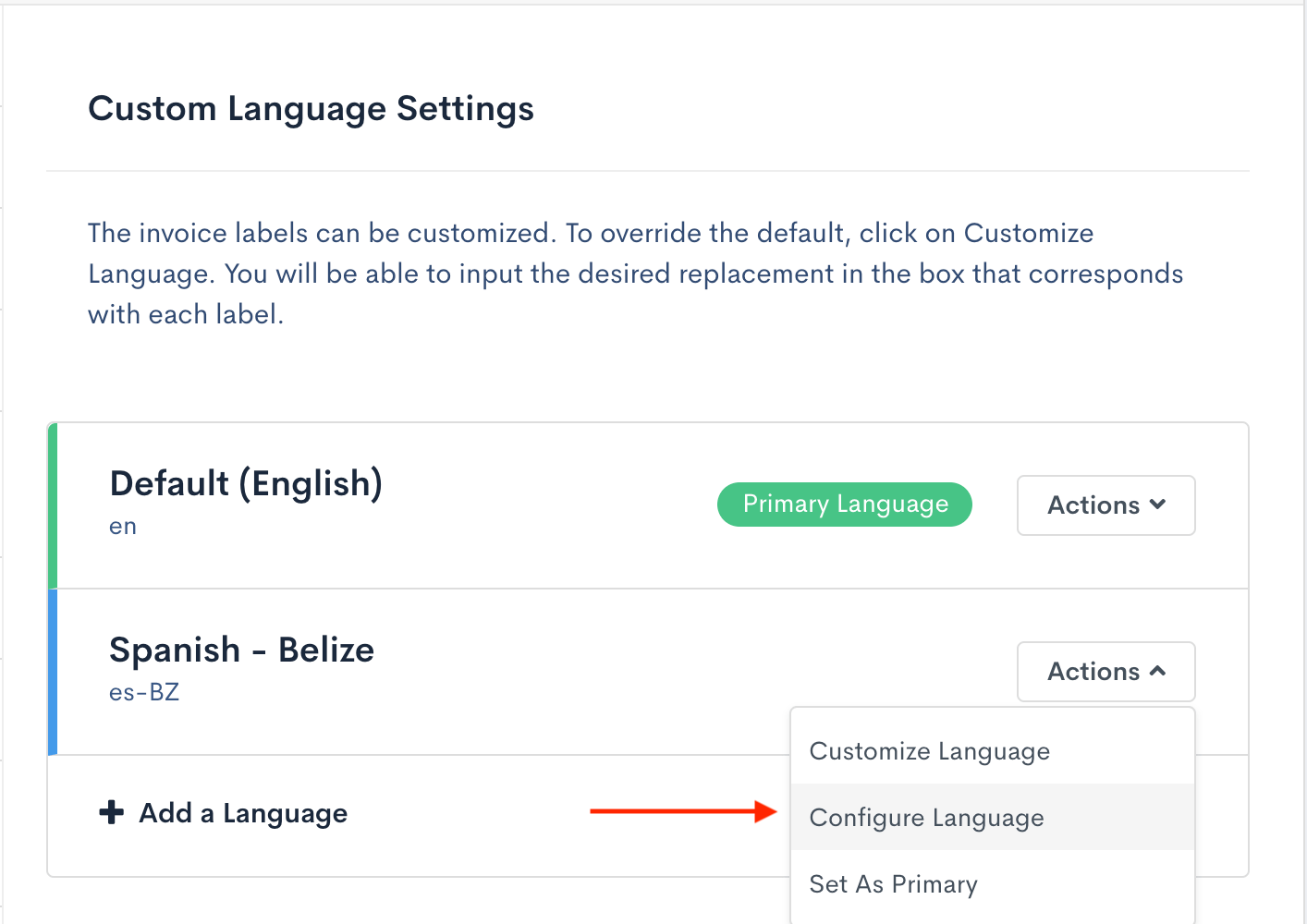
Selecting Configure Language to modify an existing Language's locale details
Set a Language as primary
Your primary Language is the set of translations your invoices and credit notes fall back to when no Language Locale matches the customer's locale, or when the customer has no locale at all. A new customer signing up without a locale inherits the primary Language's translations.
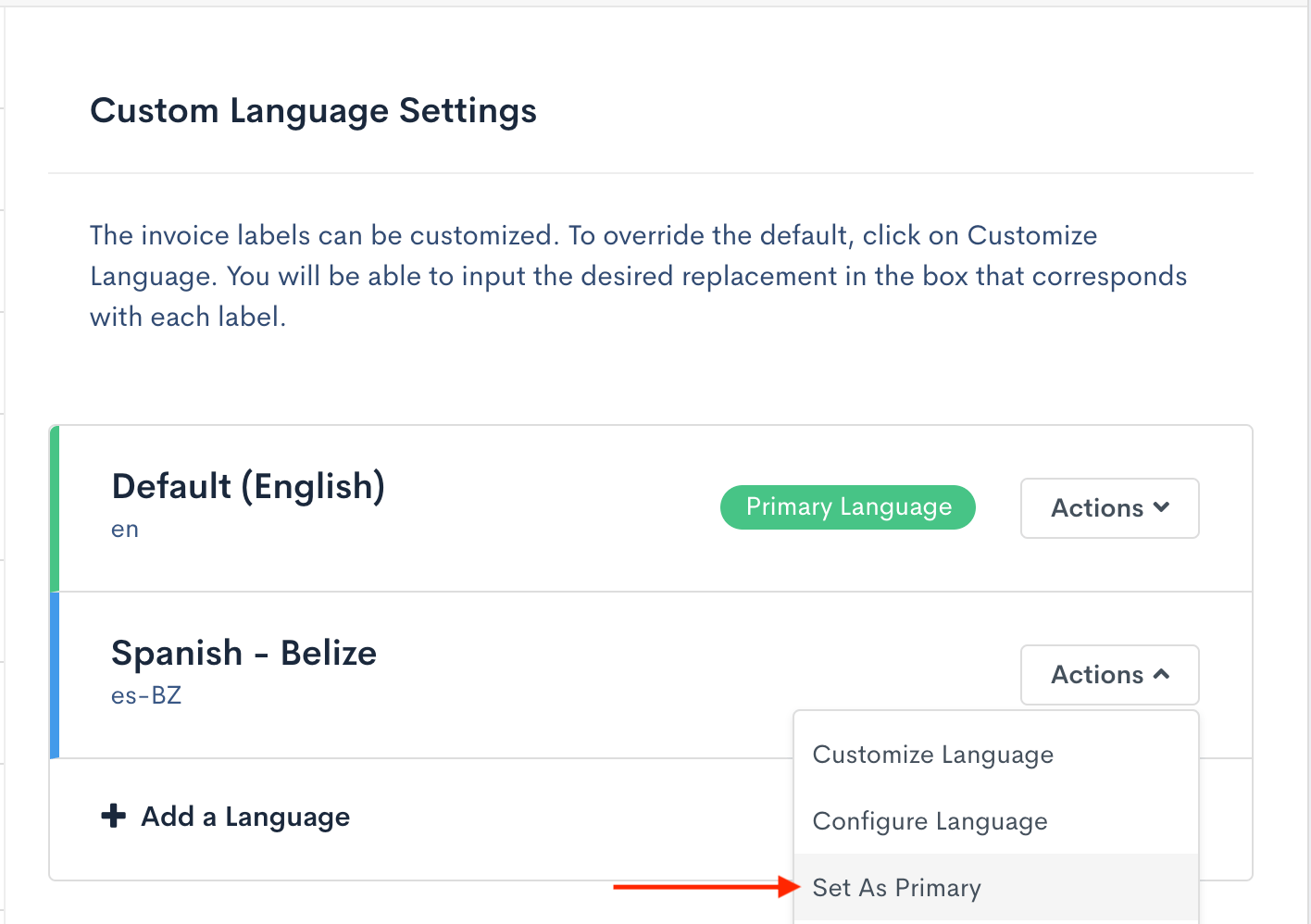
Selecting Set as Primary to make this Language the site's primary
Delete a Language
WARNING: Deleting a Language is permanent and can't be undone.
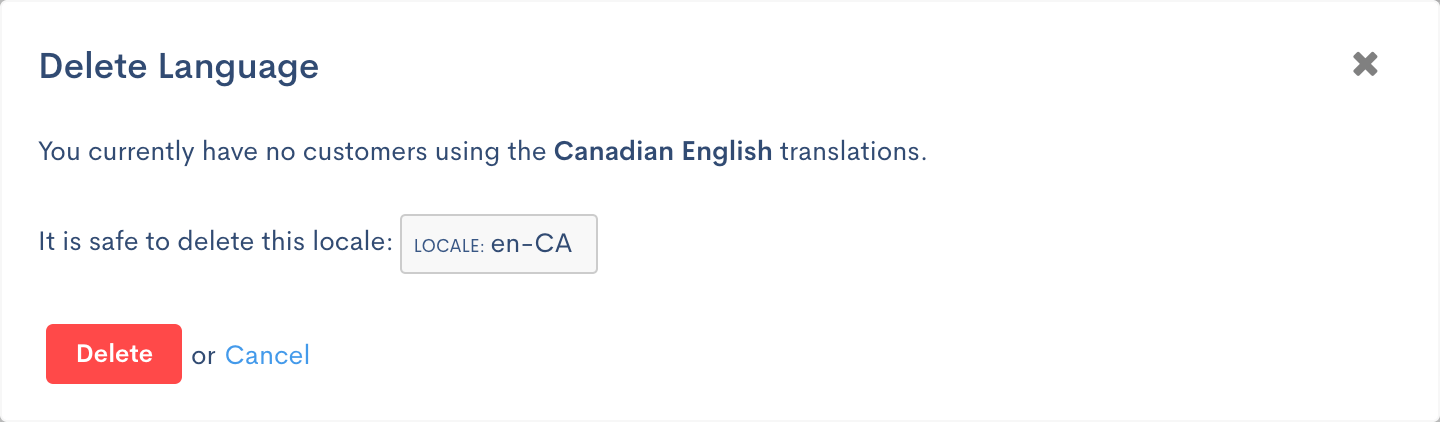
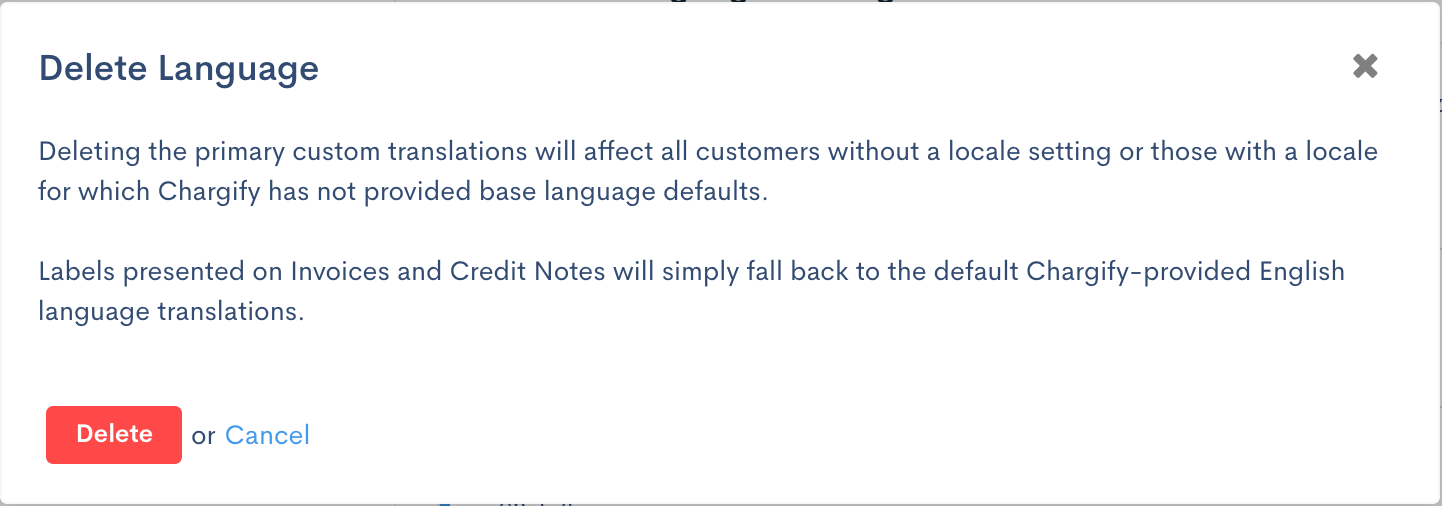
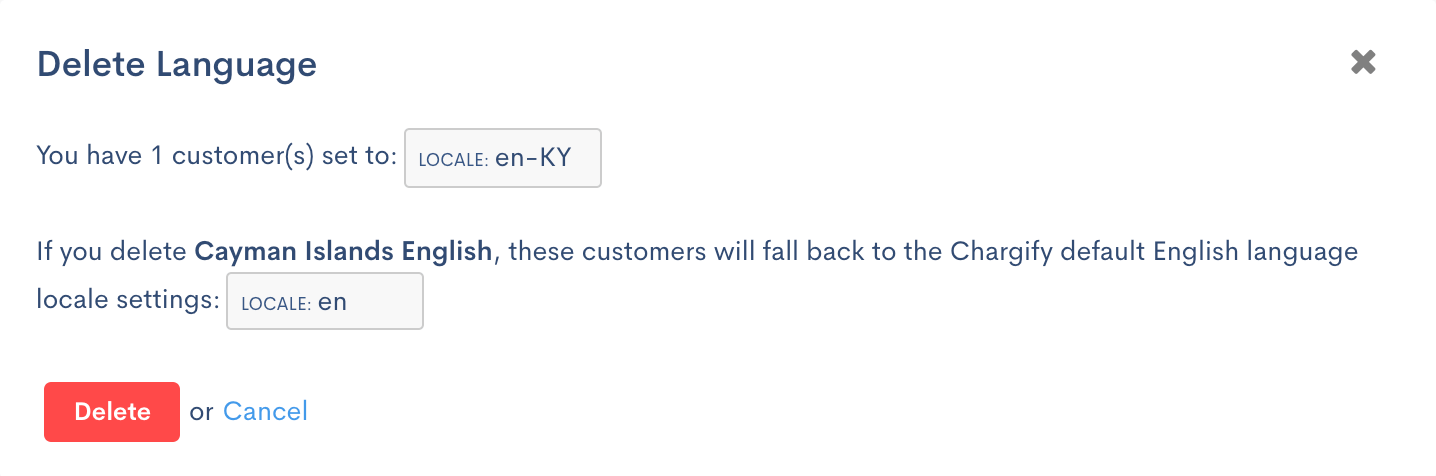
You can't delete a Language while customers are assigned to its exact locale. Reassign those customers to another locale first. When you go to delete a set of translations, you see one of 3 dialogs:
- If no customers use the translations, Advanced Billing reports that you have no customers using them, and deletion proceeds.
- If the translations are marked as primary, Advanced Billing warns that deleting them affects every customer with no locale of their own, since those customers fall back to the primary Language. If customers are also assigned to the primary Language's own exact locale, deletion is blocked until you reassign them.
- If customers are assigned to the Language's exact locale, Advanced Billing gives you a count of them and names the fallback locale they'd move to, and blocks the deletion until you reassign them to another locale.
Related information
To assign one of your languages to a Customer, see Set a Customer Locale.
For which text a language actually replaces on an Invoice, see Understand How Languages Apply to Invoices.
To reword Invoice text without translating it, see Customize Invoice and Credit Note Text.
Still need help?
Reach out and our support team will take it from here.