
Configure Security Settings
Applies to: Advanced Billing
Last updated on Sep 19, 2026
At Maxio, we want to ensure that you have all of the tools necessary to properly secure your account. From secure passwords to Two-Factor Authentication, Advanced Billing gives you many layers of security options to protect your account. For rotating an existing password, and for the shared keys your integrations authenticate with, see Change Passwords and Shared Keys.
To us, security is more than just protecting your account from unauthorized access. We’re protecting your financial information and most importantly, your subscriber’s information. As a merchant, your subscribers entrust their credit card details with you. In turn, we stay up to date on a multitude of security practices to secure your data.
PCI compliance
For more information on Maxio's Security and Compliance Program, visit the Maxio Trust Center.
Related articles:
Security settings
After signing in to Advanced Billing, go to My Profile (in the upper right corner) and select Account. From the left navigation panel, go to Security & Users and select Security.
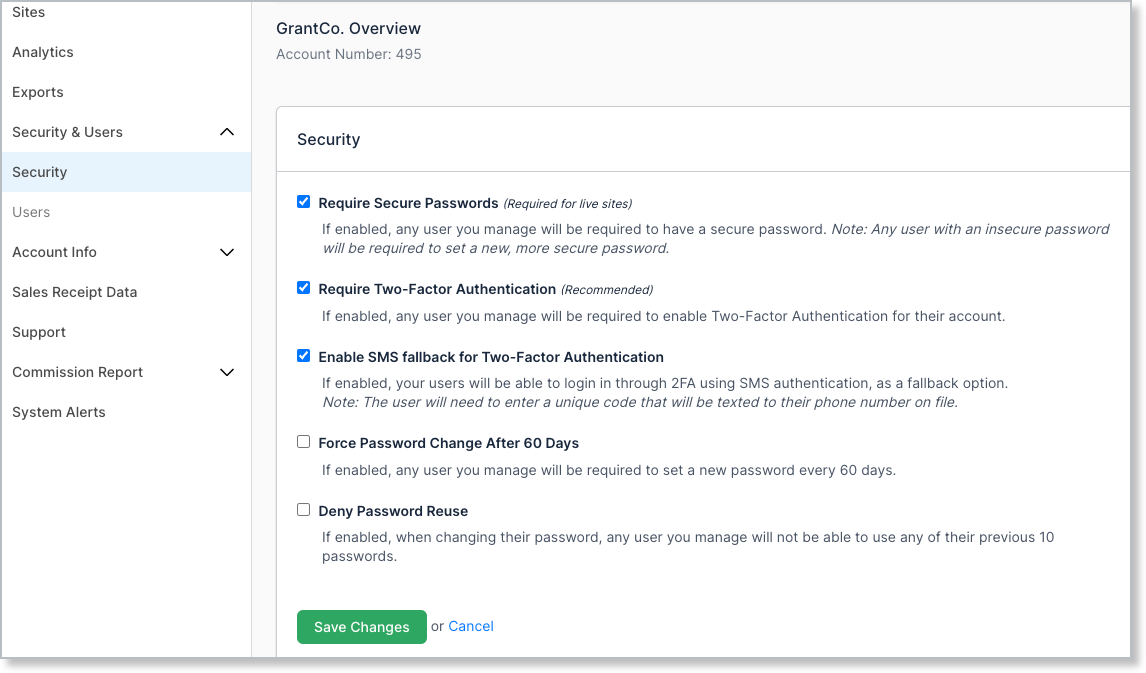
After selecting “Security”, you have the option of requiring five types of security for your account. Please be aware that these settings are global. This means they will apply to all the sites under your Merchant Account.
If your account uses SSO, all five checkboxes are disabled and managed through your identity provider instead. Password rules are handled by your SSO provider, and two-factor authentication is enforced by default for Maxio SSO users and cannot be turned off in Advanced Billing.
Require secure passwords
If enabled, any user you manage will be required to have a secure password. Any user with an insecure password will be required to set a new, more secure password.
A secure password is one that is hard for a person or a computer program to guess. These passwords are case-sensitive, and a strong one mixes uppercase and lowercase letters.
This setting is labelled Require Secure Passwords (Required for live sites) because it is a precondition for going live: you cannot create a live site until it is enabled, and once your account has a live site the checkbox is locked on.
Two-factor authentication (2FA)
If enabled, any user you manage will be required to enable two-factor authentication for their account, and will not have the option to disable it for themselves. The checkbox is labelled Require Two-Factor Authentication (Recommended).
Related articles:
- Manage Two-Factor Authentication for Your Account (Admin)
- Set Up Two-Factor Authentication When You Log In
- Troubleshoot Two-Factor Authentication
Enable SMS fallback for two-factor authentication
If enabled, your users can complete two-factor authentication using SMS as a fallback option. The user enters a unique code texted to the phone number on file for their account.
Force password change after 60 days
- If enabled, any user you manage will be required to set a new password every 60 days.
- If not enabled, users will be able to use their given password without an expiration date.
Deny password reuse
- If enabled, when changing their password, any user you manage will not be able to use any of their previous 10 passwords.
- If disabled, users will be able to use previous passwords when updating their password.
Still need help?
Reach out and our support team will take it from here.