
How do I customize Transaction or Invoice dates?
Applies to: Maxio Core
Last updated on Aug 26, 2026
Applies to: Maxio Core
In Maxio Core, you can customize both Transaction and Invoice start and end dates to fit unique billing schedules or contract terms. By enabling Advanced Settings, you can manually define these dates for single or multiple transactions and adjust invoice generation to match or differ from transaction periods.
Answer
When creating or editing a Transaction, check Show Advanced Settings to display date fields.
- Enter your desired Transaction Start Date — the system automatically calculates the End Date based on the item’s default duration.
- To set custom Invoice Dates, check Generate Invoices and adjust the Invoice Start Date. This changes the first invoice and automatically shifts subsequent invoice dates.
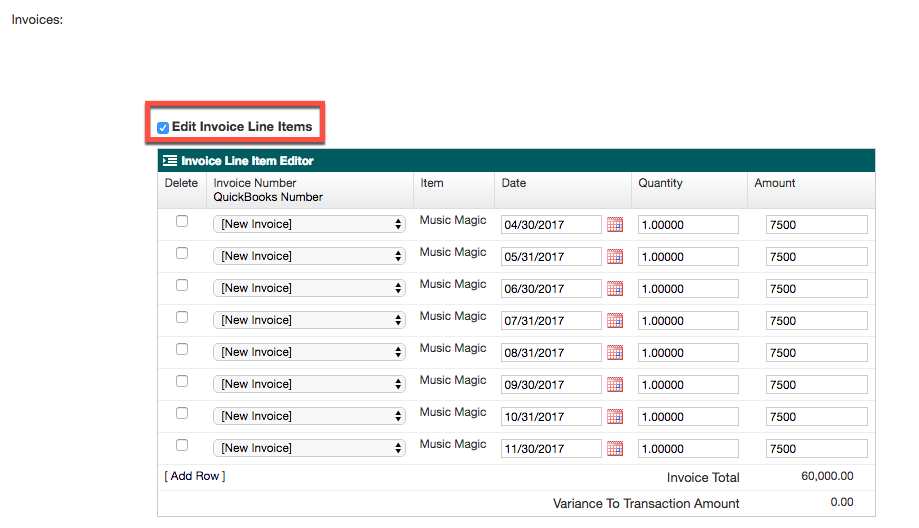
- You can also select Edit Invoice Line Items to modify invoice dates, quantities, and amounts individually.
When creating Transactions, you can specify Transaction Start Date and the system will automatically calculate the End Date using the Item's Default Duration. Invoice Dates (Start and End) will be aligned with the Transaction Dates.
In some cases, you may need to create a Transaction with a different duration than the predefined options offered by Maxio Core. You may also want to set custom Invoice dates, or schedule the Invoice dates in a way that is slightly different from the Transaction dates.
All of the screens that you use to add or edit Transactions make it easy to adjust the dates.
Adding a single transaction
Transaction dates
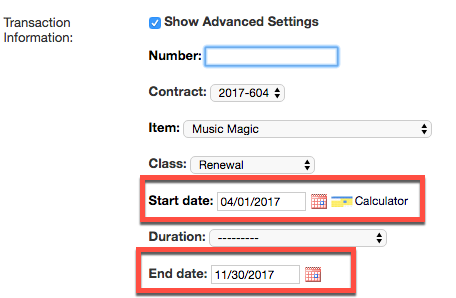
Suppose you have a Transaction with an eight-month duration that is billed on the last day of each month.
From the Add/Edit Transaction screen, make sure the box is checked to display Advanced Settings. Enter the correct Transaction Start and End dates:
Invoice dates
Invoice Dates are aligned with Transaction dates by default, but you can set the Invoice dates independently.
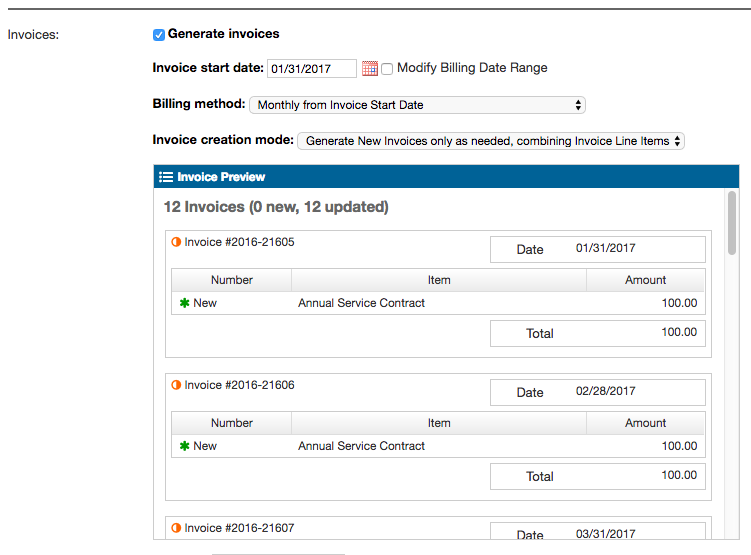
Using the same example as above (8-month duration, billed on the last day of each month): from the Add/Edit Transaction screen, make sure Advanced Settings is turned on.
Check the box marked Generate Invoices to have the system automatically create an Invoice schedule based on your Transaction settings. Change the Invoice Start Date to alter the first Invoice date and, by extension, any subsequent Invoices:
You can also choose to edit the individual Invoice Line Items created by the scheduler. Simply check Edit Invoice Line Items to create Invoices with custom dates, quantities, and amounts:
Adding several transactions
Transaction dates
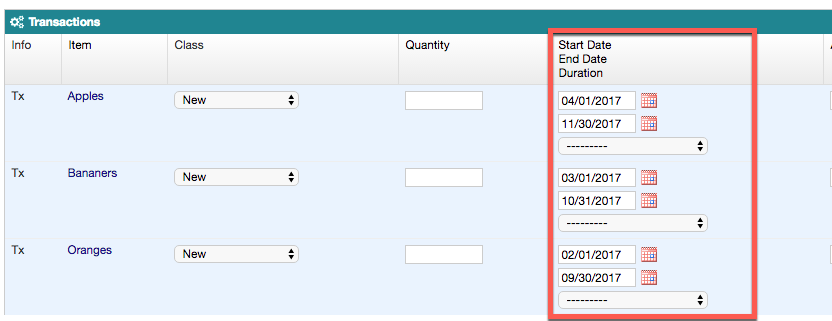
Transactions Start/End dates can also be edited while creating multiple Transactions using the Add Several Transactions and Process Orders functions:
Invoice dates
Invoice Start/End dates can also be edited while creating multiple Transactions. If you can't see the Invoice date fields, either check the box to show Advanced Settings or click "Select Columns" in the top, right corner. If using Advanced Settings, keep scrolling to the right until you find the inputs. If you choose to change your columns, find Invoice Start and End in the left column:
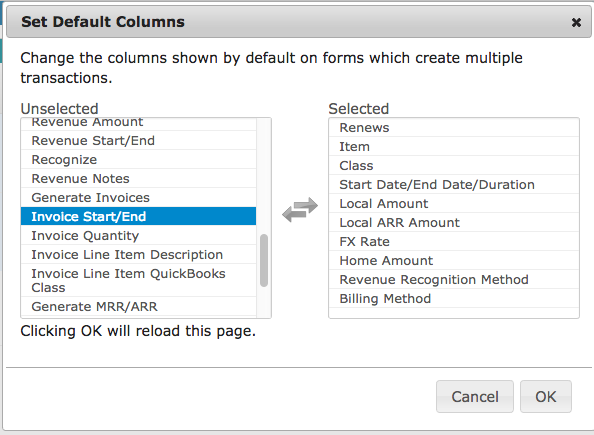
Then click to add it to the Selected columns displayed on the right:
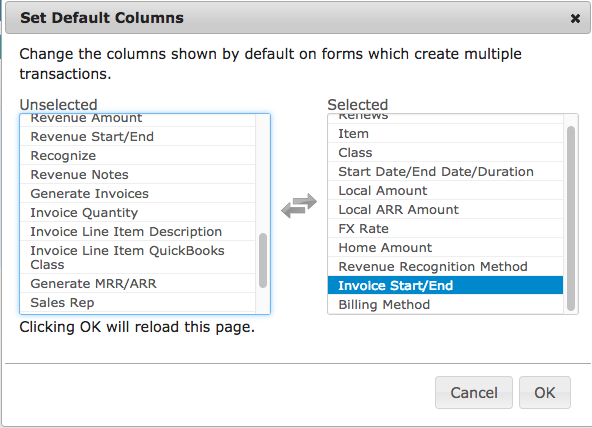
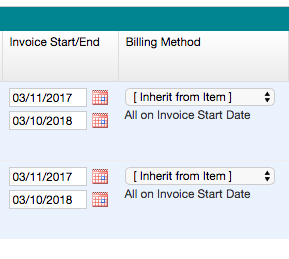
Once they have been added to your view, select your custom Invoice Start and End dates.
Still need help?
Reach out and our support team will take it from here.