Please be aware that this article is related to managing Items in Maxio Platform. An Item is a solution or product you license or sell. Each Transaction and Invoice Line Item must have an associated Item.
Routine actions for managing several Items at once, or for building a new Item from an existing one. All of them require Admin permissions.
For the two destructive Item actions, see Recast Item MRR/ARR and Clear Item Data. For a description of every Item field, see Item Fields.
Bulk Edit Items
You can edit information about several Items at one time from Admin > Items, using Bulk Edit.
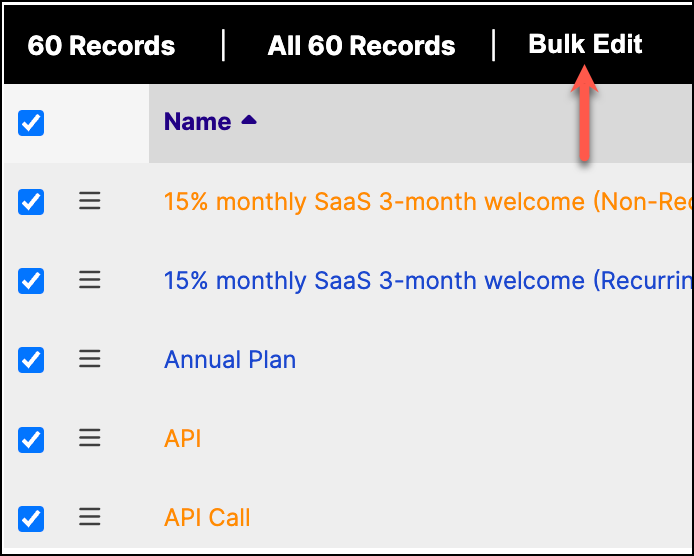
- Select one or more Items for which you want to update one or more properties, using the checkbox in the first column.
- Select the Bulk Edit button.
- Select the checkbox on the left to indicate you wish to update that setting for all the selected Items.
- Select the appropriate value in the drop-down, radio button, or checkbox to the right of the setting.
- Select the Update button.
Bulk Edit rules
- You cannot bulk edit a group of selected Items that contains a mix of QuickBooks Items and Items created in Maxio.
- You cannot bulk edit a group of selected Items that contains a mix of QuickBooks Items that need a Maxio Profile and QuickBooks Items that do not need a Maxio Profile.
- You cannot bulk edit Item names, codes, or descriptions using this function. You must edit Items individually to change those fields.
- If an Item requires a Maxio Profile, you must set both Sync Invoices and Recurring.
- The Bulk Edit function does not support the recast function for Revenues, Invoices, or MRR/ARR generation. To use those, edit an individual Item.
- The Bulk Edit function also does not allow you to update the AvaTax Sales Tax Code for multiple Items at once. You can, however, update multiple Sales Tax Codes at once from within Avalara (Settings > What you sell).
Update Items via CSV file import
If your desired Item updates are on a large scale, consider the following:
- Contact support@maxio.com to request an Import action. Importing is a fee-based Professional Services activity, typically billed by the hour.
- Use the Download option to export all Items from the Item List (Admin > Items).
- Make the necessary edits in Excel.
- Send the CSV file to Support.
- Be explicit about which fields you need updated. It is also imperative that the Item names are untouched after exporting the CSV.
- The Maxio team performs a Support-only import to update the information.
Importing is not a standard Support function and fees may apply.
Clone an Item
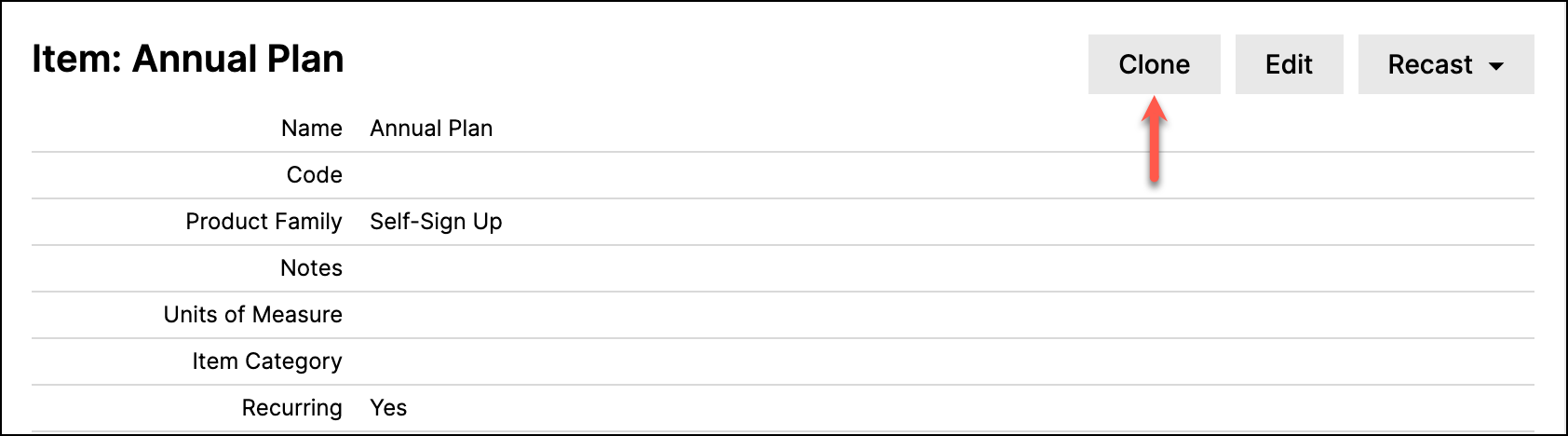
As with editing an Item, there are two ways to clone one: from the Items list view menu icon, or from the Item Detail page Clone action. The second method lets you review the Item configuration before cloning it.
From the Admin > Items list view, click the Item you want to clone. Then, from the Item Detail page, check the configuration. If acceptable, click the Clone action.
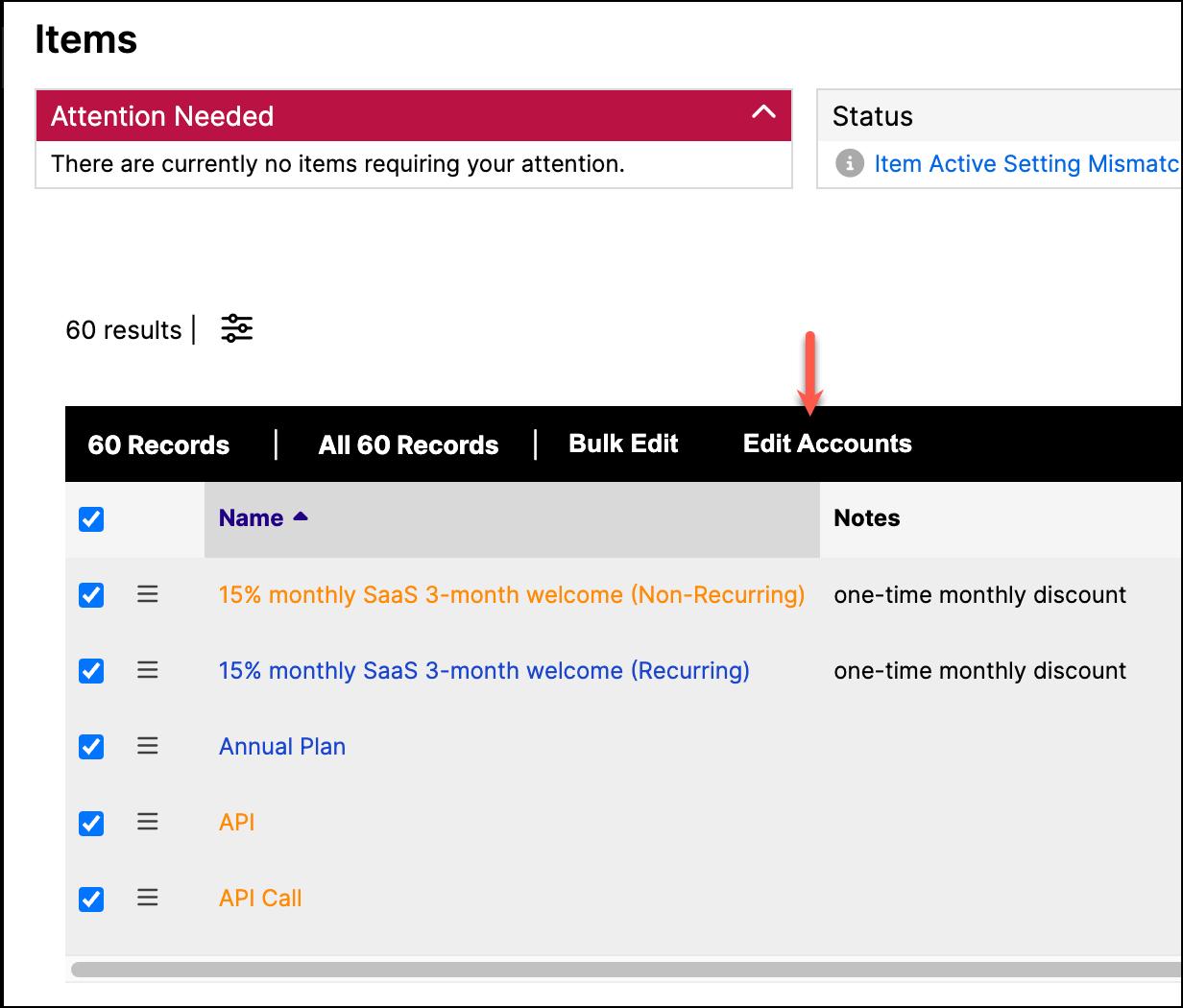
Edit Accounts
Available from the Item List view after selecting one or more Items, this function lets you edit Accounts for several Items at one time.
Still need help?
Reach out and our support team will take it from here.
Contact support