
Loading article…
Loading article…
Last updated on Aug 28, 2026
Item Groups are aggregations of Items that can be used in certain Analytics reports. When a Transaction uses an Item defined in the Item Group and the Item Group is used in a report, the Transaction is included in the data set. Item Groups simplify the creation of Analytics reports by providing a faster alternative to filtering by Items.
Creating, editing, copying, and deleting Item Groups are available only to Administrators. Any user who can run reports can view an Item Group.
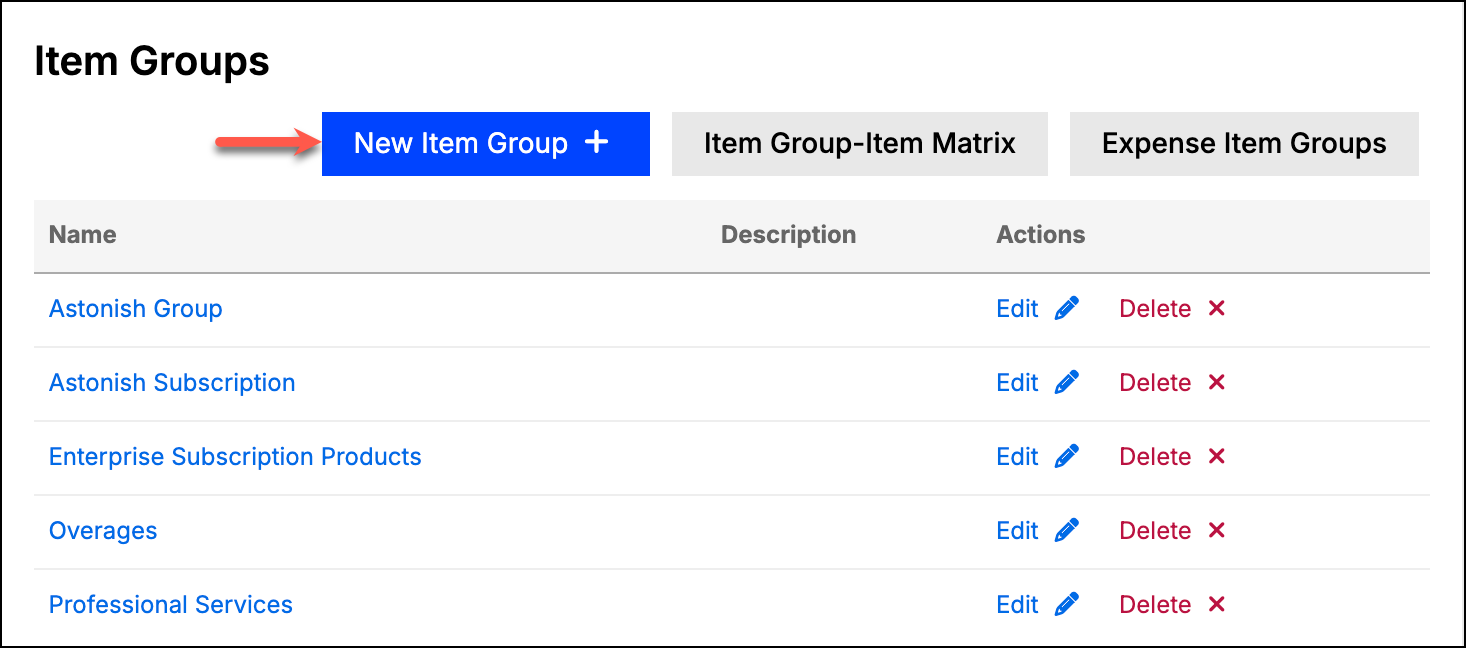
Open the Item Groups option in the Admin menu and click New Item Group in the top-right corner.
Enter a Name for the Item Group. The name must be unique. A Description is optional.
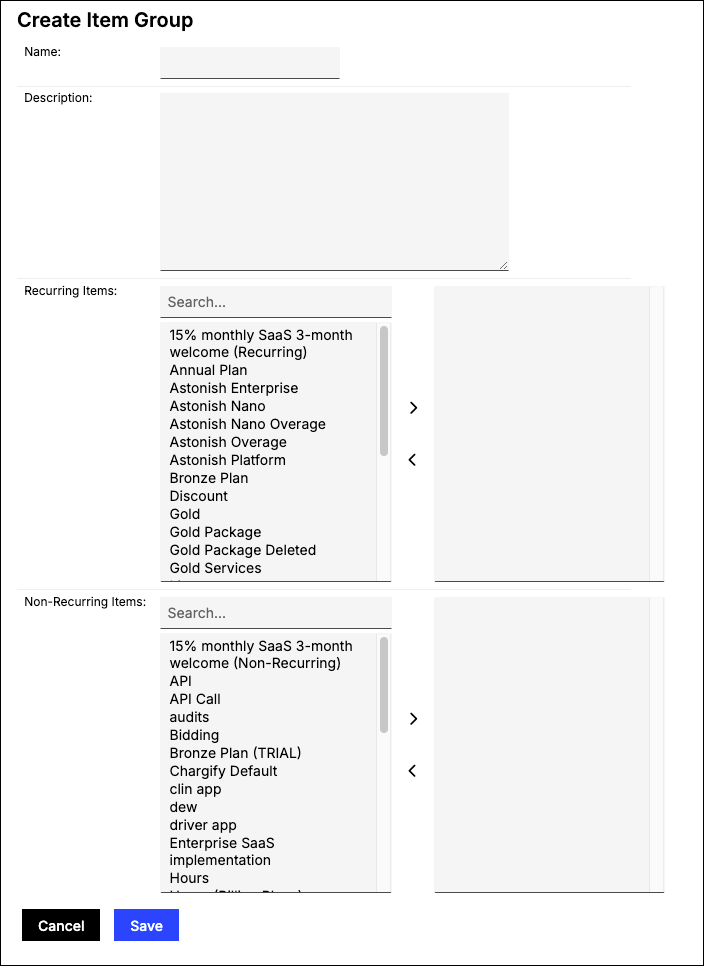
Select the Recurring Items and Non-Recurring Items that belong to this group. Both lists are optional, so you can save a group and add Items to it later.
Click Save at the bottom of the screen.
Only active Items appear in these lists. An Item marked Inactive, or one that is inactive in your connected GL, is not offered for selection.
To build a new group from an existing one, open the Item Group and use Save Item Group As. The copy opens with the same Items selected and the name cleared, so you supply a new one before saving.
Deleting an Item Group has no effect on Items, Transactions, Invoices, or Revenue. It does remove the Item Group from any Report that uses it. Because Item Groups are not typically required, a report that used a deleted Item Group still runs, but without that selection, which produces different results.
WARNING: As with all Delete functions in Maxio, there is no undo. Use caution when deleting.
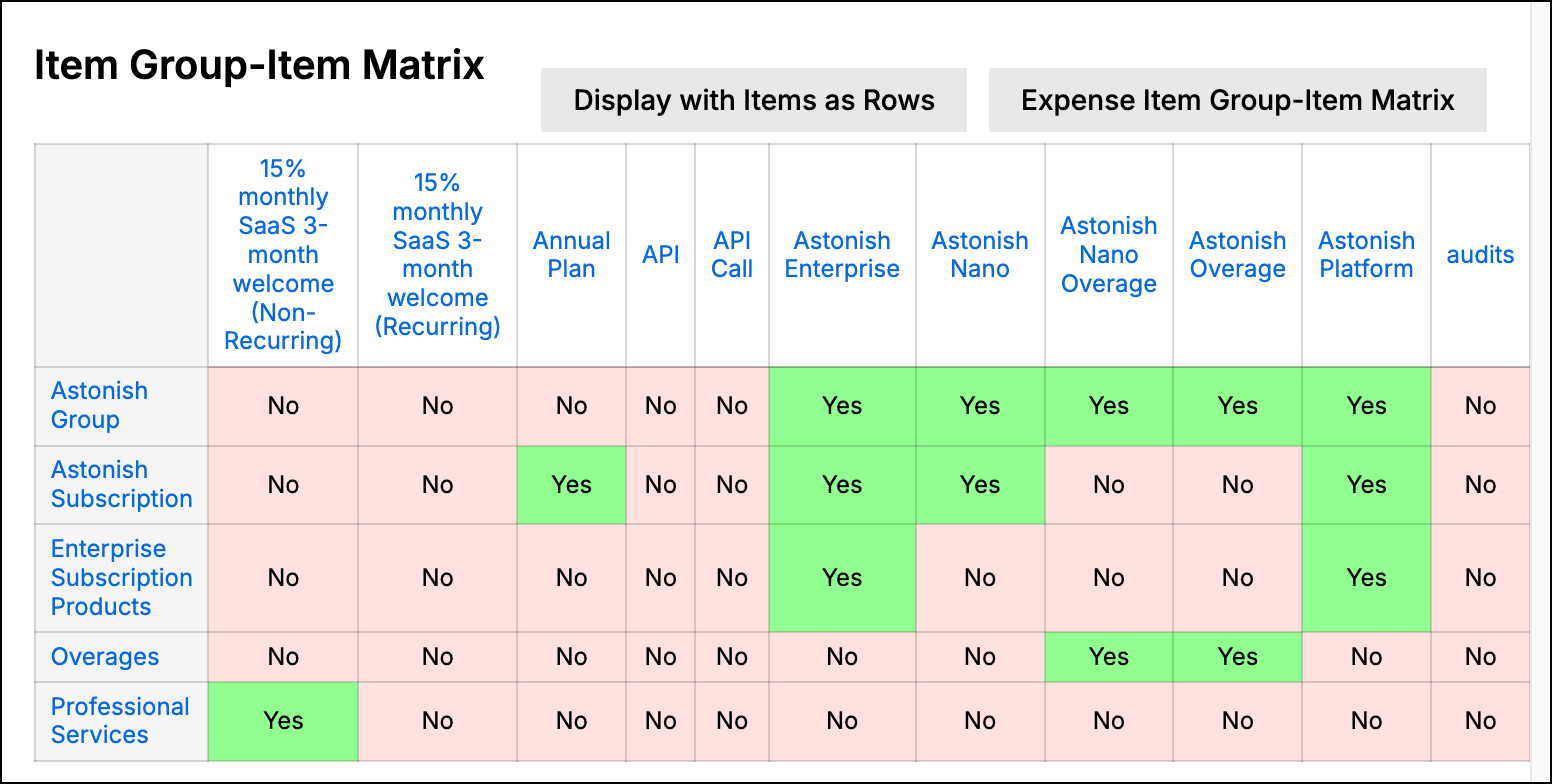
This function provides a matrix that displays the relationship between Items and Item Groups.
Still need help?
Reach out and our support team will take it from here.