
Export and Download Data
Applies to: Maxio Core
Last updated on Sep 19, 2026
In Maxio, you can export data from most list screens as a CSV file, or straight to a Google Sheet when the Google Sheets integration is enabled for your account. Use exports to analyze data at a granular level, move information into another system, or support audits and data reviews.
What you can export
If a list screen shows a Download option, its records can be exported. The objects exported most often are:
- Customers
- Transactions
- Contracts
- Invoices
- Invoice Line Items
- Payments
- Deposits
- User Notifications
- Cadences
- Most reports
Download data from a list screen
To download data from a list screen
- Navigate to the list screen that holds the records you want.
- Hover over the Download option.
- Choose whether the download includes all available columns or only those currently displayed.
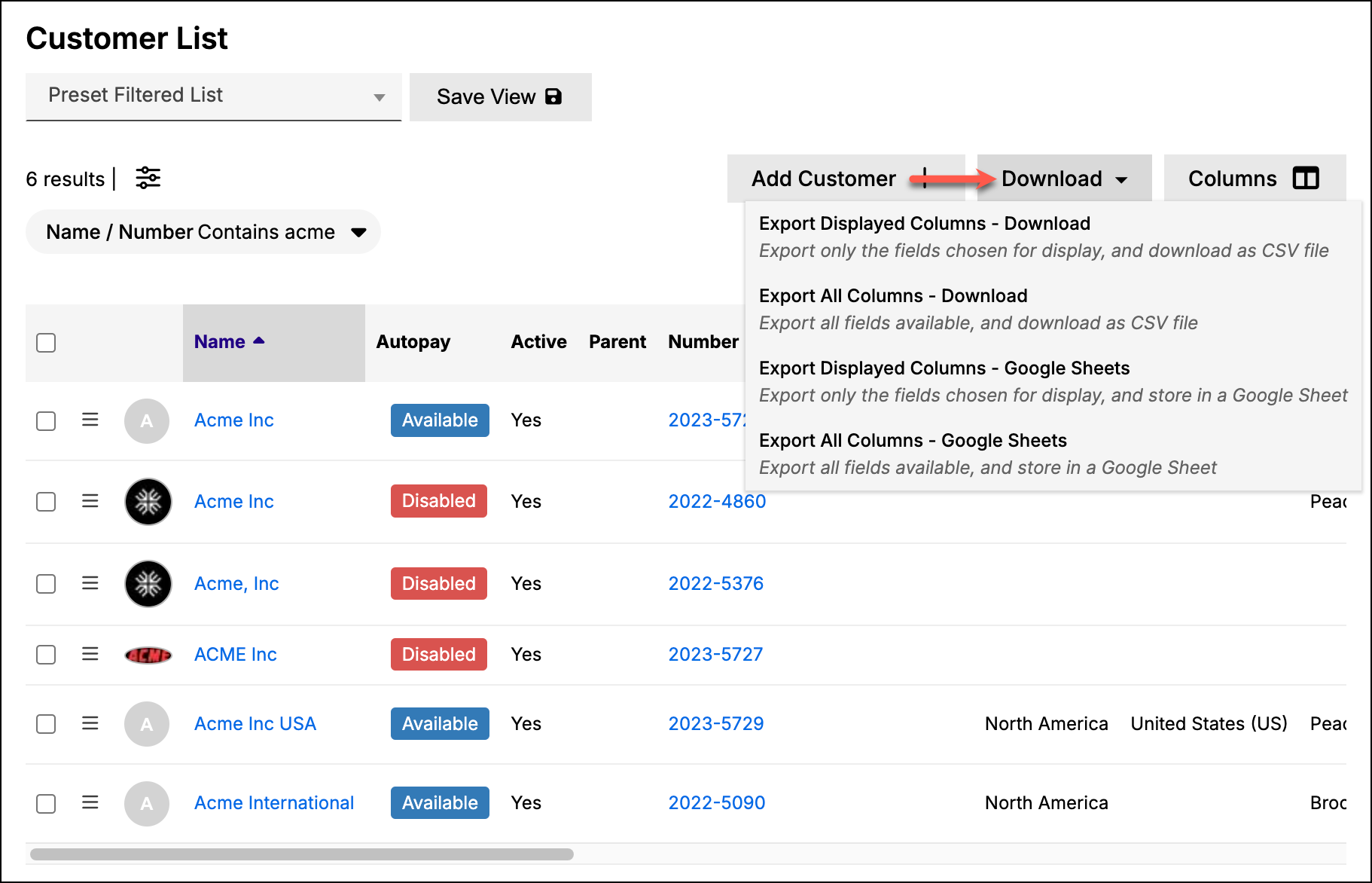
The system downloads the file to your computer.
How the exported file matches the list
Rows follow the sort currently applied to the list, so sorting a column before you export produces a file in that same order. Columns that show a label on screen export that label rather than the value stored behind it — the Items list's Source column exports Advanced Billing, not chargify.
This applies whether the file downloads immediately or runs as a background export.
How large exports run in the background
Maxio executes any large export as a background process, which provides a dedicated amount of resources depending on the current server load. Exports are automatically queued in the background if they contain more than 200 records. When you begin an export of this size, a screen displays letting you know its progress.
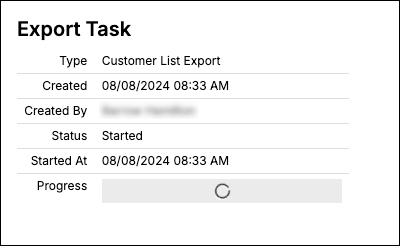
The compressed CSV file appears once the export is complete. Click the link to download the file.
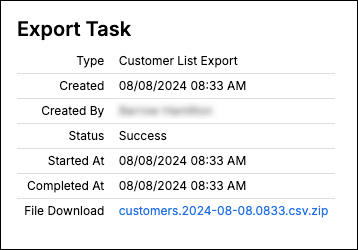
Be aware that you can continue working in the system during a background export, which is especially helpful if you are exporting a large amount of data. You can obtain the completed export by opening the Admin menu and clicking the Export Results option.
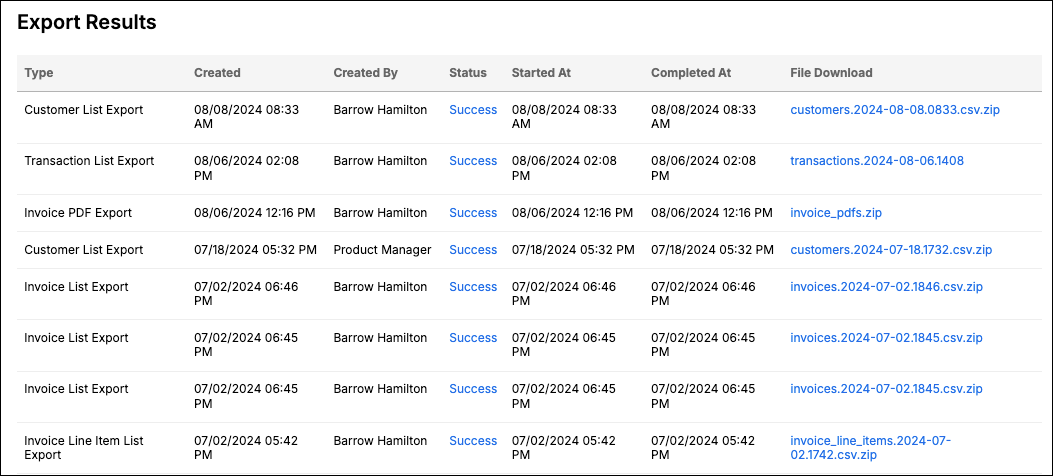
This screen contains a list of all of the completed exports including the date/time they were created and completed as well as their status. Click on a compressed CSV file to download it.
Related information
To pull the same data programmatically instead of downloading it from a list screen, see the Get Started with the Maxio Core API help article.
To export the results of a report rather than a list screen, see the Export Report Data via Maxio API help article.
Still need help?
Reach out and our support team will take it from here.