
QuickBooks Desktop Sync Issue: An attempt was made to modify a record with a date that is on or before the closing date of the company
Applies to: Maxio Core
Last updated on Aug 20, 2026
QuickBooks Desktop can reject a sync from Maxio with this error:
An attempt was made to modify a record with a date that is on or before the closing date of the company.
Example: for an Invoice or Credit Memo, QuickBooks Desktop names the record type directly and, when the closing date carries a password, asks for it to be removed: An attempt was made to modify a Invoice with a date that is on or before the closing date of the company. If you are sure you really want to do this, ask a user with Admin privileges to remove the password for editing transactions on or before to closing date (this setting is in the Accounting Company Preferences), then try again.
Why the QuickBooks Desktop closing date blocks the change
QuickBooks Desktop lets a company set a closing date that locks every transaction dated on or before it against further changes, and an administrator can additionally protect that closing date with a password.
Exactly how QuickBooks Desktop enforces or password-protects its closing date is a detail of QuickBooks Desktop itself, not something Maxio's codebase can confirm.
Maxio reads this closing date from the QuickBooks Desktop company file's accounting preferences on every sync and stores it on your account settings as the QuickBooks Closing Date. Because Maxio pulls this value from QuickBooks Desktop each time, lifting it needs to happen inside QuickBooks Desktop itself for the change to stick, not in Maxio's own settings. Maxio also keeps a closing date of its own, and before sending an Invoice, Credit Memo, or Refund Receipt update it checks whichever of the two dates is later, minimizing or skipping the update instead of sending it. That check stops most conflicts before they ever reach QuickBooks Desktop, but not every one: if you edit a record, or move its date onto or before the closing date, after that check already ran for the current sync session, Maxio still sends the update, and QuickBooks Desktop itself rejects it with this error.
Change the record's date or lift the QuickBooks Desktop closing date temporarily
Two approaches resolve this, and the first needs no changes in QuickBooks Desktop. If the record does not need to keep its original date, edit it in Maxio so its date falls after the closing date, then sync again; if it does not need to sync at all, delete it in Maxio instead. If the record does need to keep its original date, ask a QuickBooks Desktop administrator to temporarily lift the closing date so the sync can go through.
To temporarily lift the closing date and sync
- In QuickBooks Desktop, ask a user with Admin privileges to remove the closing date password (or clear the closing date entirely) under Company > Preferences > Accounting > Company Preferences.
- Run the sync again in Maxio so the record's modification goes through.
- Restore the closing date, and its password if you use one, in QuickBooks Desktop.
- Run the sync again so Maxio picks up the restored closing date from QuickBooks Desktop's accounting preferences.
Leaving the closing date off in QuickBooks Desktop instead of restoring it also clears the error, but it removes QuickBooks Desktop's protection against edits to older records going forward, so reserve it for a one-time sync rather than a lasting setting.
Check the QuickBooks Closing Date before editing older records
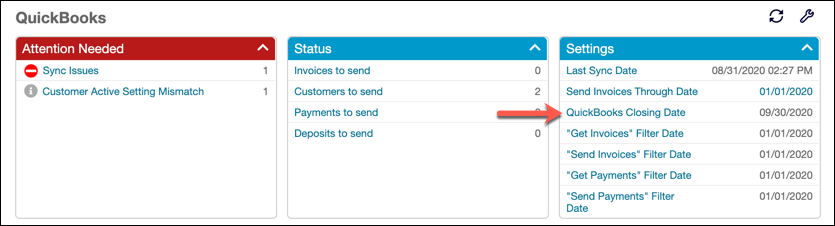
Before you edit or delete a record dated near your closing period, check the current QuickBooks Closing Date value on the main QuickBooks page in Maxio.
Related information
For how Maxio's own close and lock dates work alongside the QuickBooks Desktop closing date, see Set Close and Lock Dates for Financial Controls.
Still need help?
Reach out and our support team will take it from here.