
QuickBooks Desktop Sync Issue: Object specified in the request cannot be found
Applies to: Maxio Core
Last updated on Sep 19, 2026
Maxio can fail to send a Transaction to QuickBooks Desktop when one of its linked records, most often the Customer an Invoice or Credit Memo belongs to or an Item on one of its lines, no longer resolves to an existing record on the QuickBooks Desktop side. The QuickBooks Sync Issues list then shows a message similar to this, most commonly on the Send Invoices or Send Credit Memos sync step:
Example: Object "800000B2-1382189346" specified in the request cannot be found. QuickBooks error message: Invalid argument. The specified record does not exist in the list.
Why an object goes missing between Maxio and QuickBooks Desktop
Maxio logs this failure internally as sync issue status code 3120, matched against the exact "Object ... specified in the request cannot be found" wording quoted above. It fires whenever Maxio sends a Transaction, such as an Invoice or Credit Memo, that references another record by its QuickBooks Desktop ID, and that ID no longer matches anything in the QuickBooks company file. Maxio still has the ID on file from an earlier successful sync, so the record existed in QuickBooks Desktop at some point; it just is not there anymore.
The two records this happens to most often are:
- The Customer an Invoice or Credit Memo belongs to. Someone deleted that Customer directly in QuickBooks Desktop, or merged it into another Customer.
- The Item used on one of the Invoice or Credit Memo's line items. Someone deleted or deactivated that Item directly in QuickBooks Desktop.
Whether QuickBooks Desktop removes a merged Customer's ID immediately, or exactly how it decides an Item is no longer resolvable, is a detail of QuickBooks Desktop's own behavior, not something Maxio's codebase can confirm.
Finding the missing Customer or Item and fixing the link
Maxio turns the object ID in the sync issue message into a link straight to the Find Objects by QuickBooks ID search tool, already filled in with that ID, so you rarely need to type anything.
To find and fix the missing record
-
In the QuickBooks Sync Issues list, select the object ID shown in the message. If it does not appear as a link, open Find Objects by QuickBooks ID from the QuickBooks Sync Issues page instead and paste in the ID from the message.

-
On the results page, note the Type Maxio found for that ID, either Customer or Item, along with the record's name.
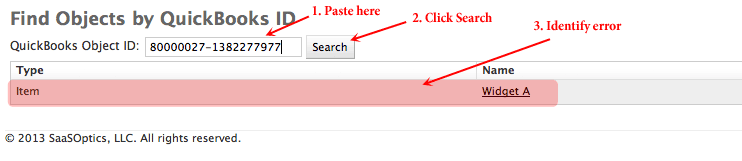
-
If the Type is Customer, the Customer the Invoice or Credit Memo belongs to existed in QuickBooks Desktop when it last synced but no longer does. Open the Contract and resolve it using any of the following: delete the Invoices or Credit Memos that have not yet synced, delete any Transaction whose Invoice or Credit Memo Line Items have not yet synced, delete the Contract if it contains no synced Invoices or Credit Memos, or edit the Contract to move it to a different, still-synced Customer.
-
If the Type is Item, the Item used on that line item no longer exists in QuickBooks Desktop. Deactivate the Item in Maxio, then edit the Invoice or Credit Memo's Transaction and line items to use a different, active, QuickBooks-synced Item.
-
Sync again once the link is fixed.
Avoiding this error
Avoid merging Customers in QuickBooks Desktop directly, since a merge is exactly the kind of change that leaves a Maxio-synced Invoice or Credit Memo pointing at a Customer ID that no longer exists; see Related information below for how to merge one safely if you must. If you must delete a Customer or Item from QuickBooks Desktop, move or resync any Maxio-linked Invoices, Credit Memos, and Contracts to a different QuickBooks Desktop record before you delete it, so nothing is left pointing at an ID that is about to disappear.
Related information
For guidance on merging Customers in QuickBooks Desktop without breaking a Maxio sync, see Merge QuickBooks Customers the Right Way.
For instructions on deactivating an Item so it stops appearing on new Transactions, see Understand Items.
For the full list of QuickBooks Desktop sync failures and what causes each one, see QuickBooks Desktop Sync Issues.
Still need help?
Reach out and our support team will take it from here.