
Disconnecting and Reconnecting with QuickBooks Desktop
Applies to: Maxio Core
Last updated on Oct 9, 2026
After you install RevenueBooks in the Web Connector as part of the Maxio integration, certain events can disconnect Maxio from your QuickBooks Desktop file:
- Moving your QuickBooks file from one machine to another.
- Restoring your QuickBooks file from a backup.
- Changing your QuickBooks file hosting provider or your remote server access.
Why moving or restoring your QuickBooks file breaks the connection
Maxio's server authenticates every Web Connector sync using only the shared connection user name and password for your account, and it never checks which specific QuickBooks company file is connected. Only the connection user credentials, whether the integration is enabled, and whether QuickBooks Online sync is off are checked before a sync session starts. The company file name Web Connector reports with each request also goes unused after that: the sync handler receives it but never reads it again before generating the next request.
The link between your Web Connector installation and your QuickBooks Desktop file lives entirely inside the Web Connector application itself. That's third-party behavior controlled by Intuit's Web Connector and the Windows registry, so it can't be confirmed from Maxio's codebase.
Because that link is local to the Web Connector installation and isn't something Maxio's server enforces or resets, moving the file, restoring it from a backup, or changing its hosting doesn't update anything on Maxio's side. Instead, the local Web Connector registration itself stops working, and it stays broken until you remove and reinstall it.
Remove and reinstall the Web Connector connection
Maxio recommends removing the existing RevenueBooks entry entirely and reinstalling it fresh, rather than trying to repair the connection in place.
To reconnect Maxio to QuickBooks Desktop
-
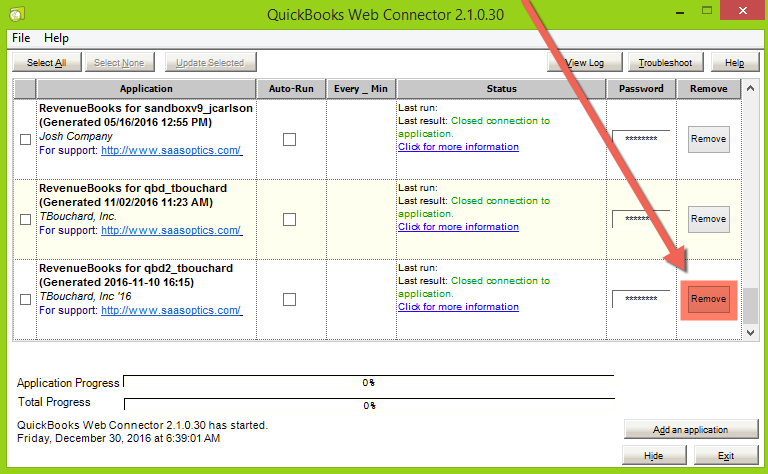
Remove the RevenueBooks application. Open the Web Connector on the computer where it's installed, then select Remove next to the RevenueBooks entry for your account.
-
Confirm the removal. Select Yes in the confirmation dialog that appears, to disconnect RevenueBooks from QuickBooks Desktop.
Web Connector can show "Cannot remove this application now. check if the QuickBooks is running or right company file is open" instead of completing the removal. If it does, QuickBooks Desktop is preventing Web Connector from finishing the request, and you need to remove the entry manually. Open the Windows Registry Editor and delete the RevenueBooks key under
HKEY_CURRENT_USER\Software\Intuit\QBWebConnector\SOAPWebServices.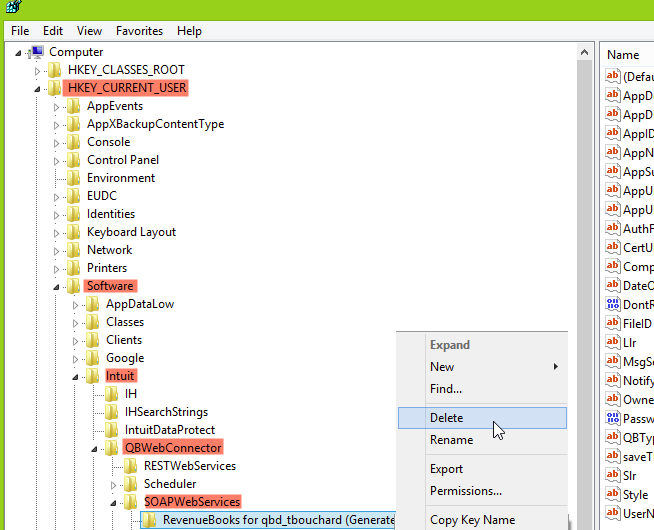
-
Reinstall the QWC file. Follow Setup QuickBooks Desktop to download and install a fresh QWC file. This re-establishes the connection between Maxio and QuickBooks Desktop.
Contact support@maxio.com if you still can't reconnect after following these steps.
Reduce future disconnections
Reinstall the QWC file right after you move, restore, or change the hosting of your QuickBooks file, instead of waiting for a sync to fail first. Download a fresh QWC file for each computer that runs the Web Connector: every install authenticates with the same account-wide connection user credentials, but keeping one file per computer makes your installs easier to track.
Related information
For the full Web Connector download and installation steps this reconnection relies on, see Setup QuickBooks Desktop.
If Web Connector instead reports that your company file is locked by another client, see Company File Is Locked by Another Client Running at Machine Named.
For other QuickBooks Desktop sync failures unrelated to a full disconnection, see QuickBooks Desktop Sync Issues.
Still need help?
Reach out and our support team will take it from here.