
QuickBooks Desktop Sync Issue: You cannot use the same tax item in both the line items and the txn tax
Applies to: Maxio Core
Last updated on Aug 20, 2026
QuickBooks Desktop can reject an Invoice sync with this error:
You cannot use the same tax item in both the line items and the txn tax.This happens when Maxio sends an Invoice's Sales Tax as a Line Item using a Sales Tax Item that QuickBooks Desktop is also using to calculate its own automatic sales tax, what the error calls the "txn tax", on that same transaction.
Why the same sales tax item causes a conflict in QuickBooks Desktop
When your Maxio account has the Send Invoices Sales Tax As setting configured, Maxio adds the Invoice's Sales Tax amount as a Line Item using that Sales Tax Item instead of leaving QuickBooks Desktop to calculate tax on its own. This setting is required whenever your account uses Maxio's AvaTax integration to calculate and commit Sales Tax and also syncs Invoices to QuickBooks Desktop.
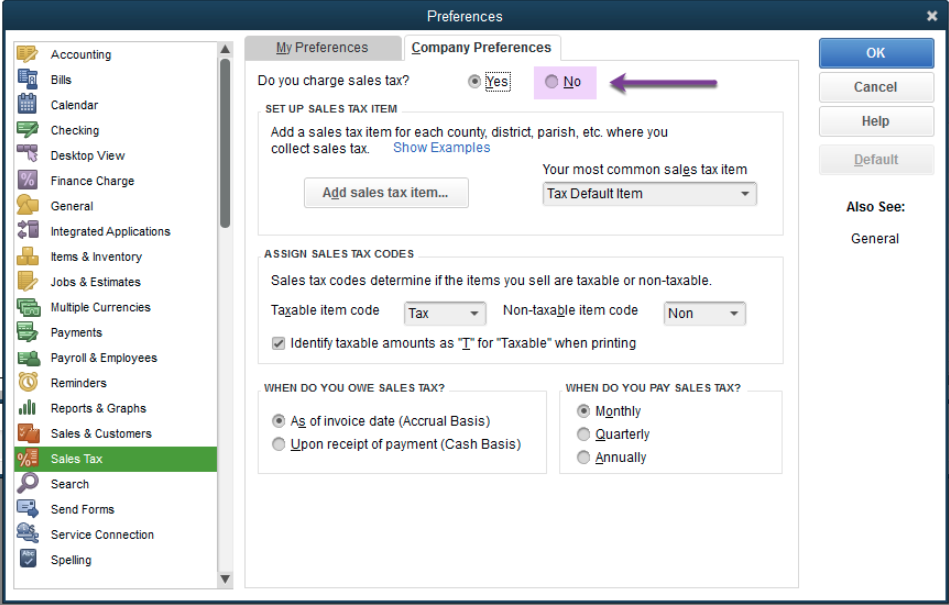
If QuickBooks Desktop's own native Sales Tax preference is also turned on, meaning Do you charge sales tax? is set to Yes in Company Preferences, and that preference is set up to calculate tax using the same Sales Tax Item, QuickBooks Desktop refuses the transaction. It can't use one Item both as a manually entered Line Item and as the Item driving its own automatic tax calculation on the same transaction.
Exactly how QuickBooks Desktop's own Sales Tax preference decides which Item to use for its automatic "txn tax" calculation is third-party behavior controlled entirely within QuickBooks Desktop. Maxio's codebase can't confirm or override that internal logic.
Turn off QuickBooks Desktop's native sales tax calculation
Since the Sales Tax amount already arrives from Maxio's AvaTax integration as a Line Item, QuickBooks Desktop only needs to record that amount, not calculate its own.
To turn off QuickBooks Desktop's native sales tax calculation
-
In QuickBooks Desktop, go to Edit > Preferences > Sales Tax, then select the Company Preferences tab.
-
Set Do you charge sales tax? to No.
-
Select OK to save the preference.
-
Sync the Invoice again in Maxio.
Keep sales tax calculation in one place
Decide whether AvaTax or QuickBooks Desktop calculates Sales Tax for your account, then keep only that one method active. Once AvaTax and the Send Invoices Sales Tax As setting are calculating and sending tax as a Line Item, leave QuickBooks Desktop's own Sales Tax preference turned off so the two methods don't compete for the same Sales Tax Item.
Related information
For the full setup requirements for the Send Invoices Sales Tax As setting, including when it's required and what happens if it isn't configured, see Sync QuickBooks Sales Tax.
For the description of every QuickBooks integration setting field, including Send Invoice Sales Tax As, see Configure QuickBooks Integration Settings Fields.
Still need help?
Reach out and our support team will take it from here.