
QuickBooks Desktop Sync Issue: There is an invalid reference to QuickBooks Account "..." in the Deposit
Applies to: Maxio Core
Last updated on Aug 20, 2026
When Maxio sends a Deposit to QuickBooks Desktop during a Payment/Deposit sync, the sync can fail with this error:
There is an invalid reference to QuickBooks Account "..." in the Deposit.
Why the Unassociated Payments Account setting causes this
On every Deposit it sends, Maxio credits any payment line it can't match to an open Invoice to whichever account you've set as the Unassociated Payments Account in your Payment/Deposit Sync Settings. That setting needs to point to a plain, separate asset account. This error typically appears when it's set to the Undeposited Funds account instead. Undeposited Funds is a special QuickBooks Desktop account reserved for holding payments until they're batched into a bank deposit, and QuickBooks Desktop rejects it when another Deposit tries to reference it as a regular account.
Point the Unassociated Payments Account to a separate asset account
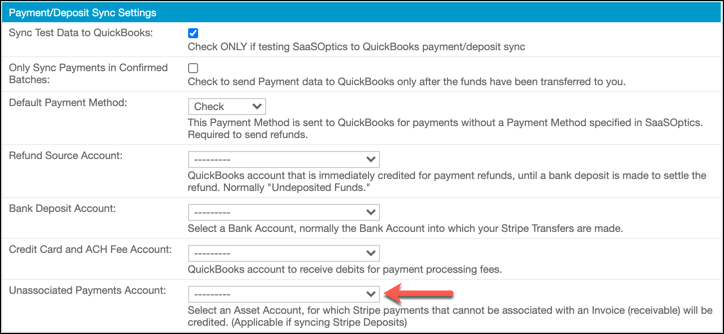
Change the Unassociated Payments Account setting so it points to a dedicated asset account instead of Undeposited Funds. If you don't already have one, create a new asset account in QuickBooks Desktop first, for example one named "Unassociated Payments."
To change the Unassociated Payments Account
-
Go to Admin > Integration > QuickBooks in Maxio, then select Update Settings.
-
In the Payment/Deposit Sync Settings section, select a different account for the Unassociated Payments Account setting.
-
Select Save.
-
Run a sync with QuickBooks Desktop. The Deposit should now go through.
Avoid pointing the Unassociated Payments Account at Undeposited Funds
Keep the Unassociated Payments Account on its own dedicated asset account, separate from Undeposited Funds. Undeposited Funds already has a job in this same settings screen: it's the normal choice for your Refund Source Account, where payments sit until a bank deposit settles the refund. Reusing it for the Unassociated Payments Account too is what triggers this error, so keep the two settings pointed at different accounts.
Related information
For definitions of every field on the Payment/Deposit Sync Settings page, including the Unassociated Payments Account and Refund Source Account, see Configure QuickBooks Integration Settings Fields.
Still need help?
Reach out and our support team will take it from here.