
QuickBooks Online Sync Issue: Duplicate Name Exists
Applies to: Maxio Core
Last updated on Aug 24, 2026
Why QuickBooks Online rejects a name as a duplicate
QuickBooks Online requires every Customer, Vendor, and Employee name in a company file to be unique, and it requires Item names to be unique too. Maxio applies a similar rule on its own side: Item names must be unique in Maxio, and Customer names must be unique in Maxio whenever a GL is connected. When a name collides across either system, the record that's arriving gets rejected, or it ends up duplicated instead of syncing cleanly. On the QuickBooks Online side, the conflicting name can belong to a Vendor or an Employee, not just a Customer, since QuickBooks Online treats all three as one shared list of names.
This shows up in three different situations, depending on which record type is moving in which direction.
Sending a Customer to QuickBooks
When Maxio sends a Customer to QuickBooks Online for the first time, QuickBooks Online checks the name against every Customer, Vendor, and Employee already in its company file. If another record already uses that name, QuickBooks Online rejects the sync with this error:
Example: Duplicate Name Exists Error (Details: The name supplied already exists. Another customer, vendor, or employee is already using this name. Please use a different name.)
The Customer stays unsynced in Maxio until the conflict is resolved.
You have two ways to resolve this:
- Change the Customer's QuickBooks name in Maxio so it no longer matches the existing name. Adding a "-" to the end of the name is usually enough.
- Mark the conflicting record inactive in QuickBooks Online.
Sync again once you've made either change.
Receiving a Customer from QuickBooks
Maxio matches an incoming QuickBooks Customer to an existing Maxio Customer by its QuickBooks ID, not by name. If you already created a Customer manually in Maxio before it synced from QuickBooks Online, and a QuickBooks Customer with the same name comes in through a Get Customers sync, Maxio can't reconcile the two by name alone. The sync either fails with a "Problems were encountered while creating the Maxio records for the following QuickBooks customers" message, or it leaves you with two separate Customer records that share a name.
To fix this
-
Click the Customer name linked in the sync issue message.
-
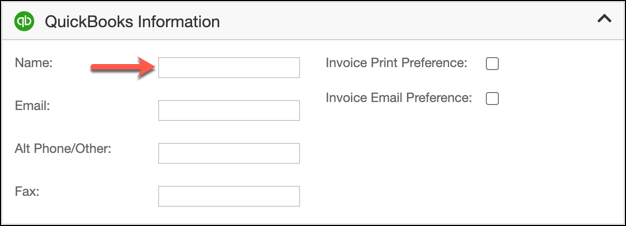
Edit the Customer.
-
Change the Customer's QuickBooks name so it's different from the one in QuickBooks Online. Adding a "-" to the end of the name is usually enough. Then select Save.
-
Sync again to bring the Customer in from QuickBooks Online.
If you don't need to keep the Maxio-side record, mark it inactive in QuickBooks Online instead of renaming it.
Receiving an Item from QuickBooks
Item names must be unique in Maxio. If an Item is syncing in from QuickBooks Online and an Item with that same name already exists in Maxio, Maxio can't create the new record, and the sync fails with a "Problems were encountered while creating the Maxio records for the following QuickBooks items" message.
To fix this
- Open the Items list (renaming an Item requires the Admin role) and find the Item named in the sync issue message.
- Edit the Item and change its name so it's different from the one in QuickBooks Online.
- Select Save, then sync again to bring the Item in from QuickBooks Online.
Alternatively, mark the Item inactive in QuickBooks Online.
Avoiding duplicate names
Create Customers in Maxio rather than in QuickBooks Online. Maxio blocks duplicate Customer names automatically whenever a GL is connected, so creating Customers in Maxio first prevents this conflict before it ever reaches QuickBooks Online. If you're running into this error often, creating new Customers directly in QuickBooks Online checks for duplicates there too, and you can then sync those Customers into Maxio.
Create Items in QuickBooks Online rather than in Maxio, then let them sync in. This keeps Item names aligned across both systems and avoids the naming conflict described above.
Related information
For how Items and Item Profiles affect Invoice and Credit Memo sync, see Sync QuickBooks Invoices.
Still need help?
Reach out and our support team will take it from here.