
Viewing and Editing Custom Fields
Applies to: Advanced Billing
Last updated on Aug 27, 2026
Custom fields let you store your own data against a subscription — anything Advanced Billing does not model natively, such as an account manager, a contract reference, or a plan tier of your own. The Custom Fields tab shows the fields that apply to this subscriber and lets you set or change their values.
Where to find it
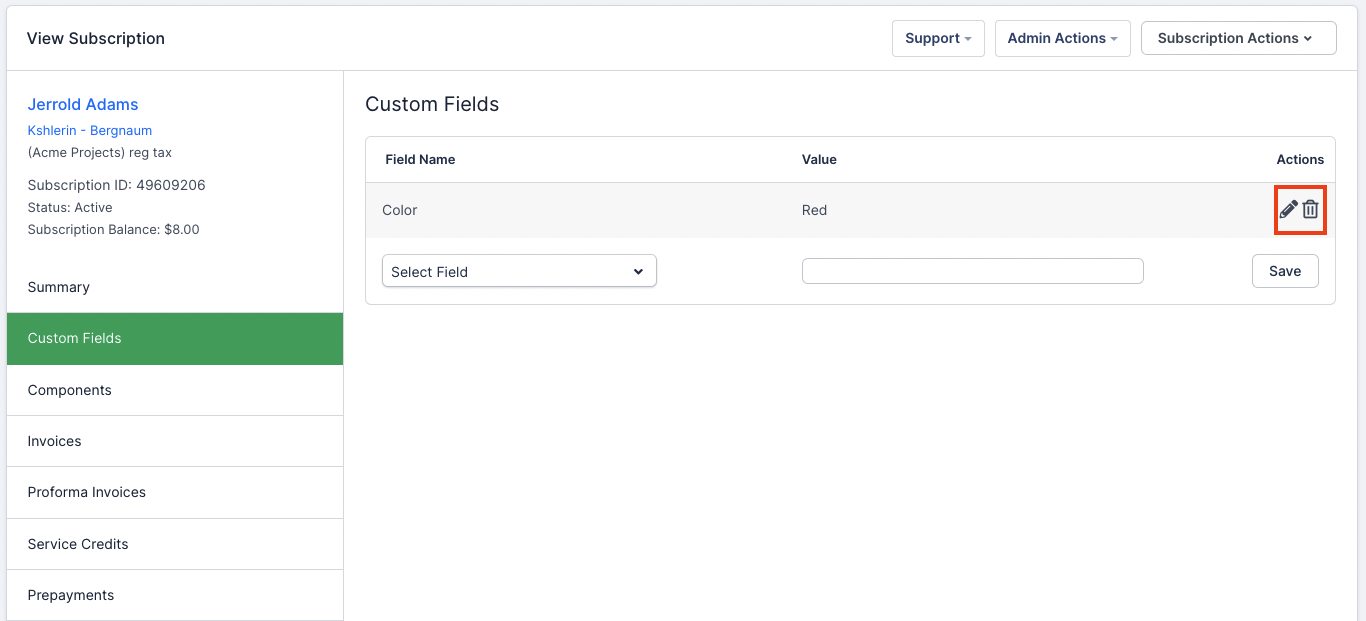
Click Custom Fields on the side of the subscription summary. The tab lists the fields the site defines, alongside whatever value is currently set for this subscription.
Set and change values
Values can be entered or changed per subscription directly on this tab, and existing values can be edited or deleted here as well. A change made here affects only this subscription, not the field definition itself.
Where the fields come from
The fields available on the tab are the ones defined for the site — see configure custom fields to add or change a definition. If a field you expect is missing, it has not been defined at the site level yet.
You can also let subscribers supply custom field information themselves at signup, by enabling it on your Public Pages.
Please be aware that this article is related to Advanced Billing's Subscription Summary function. The subscription summary is the place to perform all tasks necessary to manage customers’ purchases through Advanced Billing.
You can learn more about the Subscription Summary by checking out this help article: Subscription Summary Overview.
Still need help?
Reach out and our support team will take it from here.